
Many TikTok Users Are Perplexed About How to Add GIFs in Comments
Rolling out features to only some TikTok users can create a lot of confusion.

Published March 19 2026, 3:59 p.m. ET

Sometimes TikTok rolls out new features to only some users or only users in some regions, which can cause a lot of frustration for other users of the app. This is the case for the feature that allows TikTokers to use GIFs in comments. It appears that many TikTok users don't yet have access to the GIF comment feature, since it was only rolled out to select users for testing.
Here's what we know about how the feature is working for some users, and potential workarounds for users who don't have the feature available as of yet.
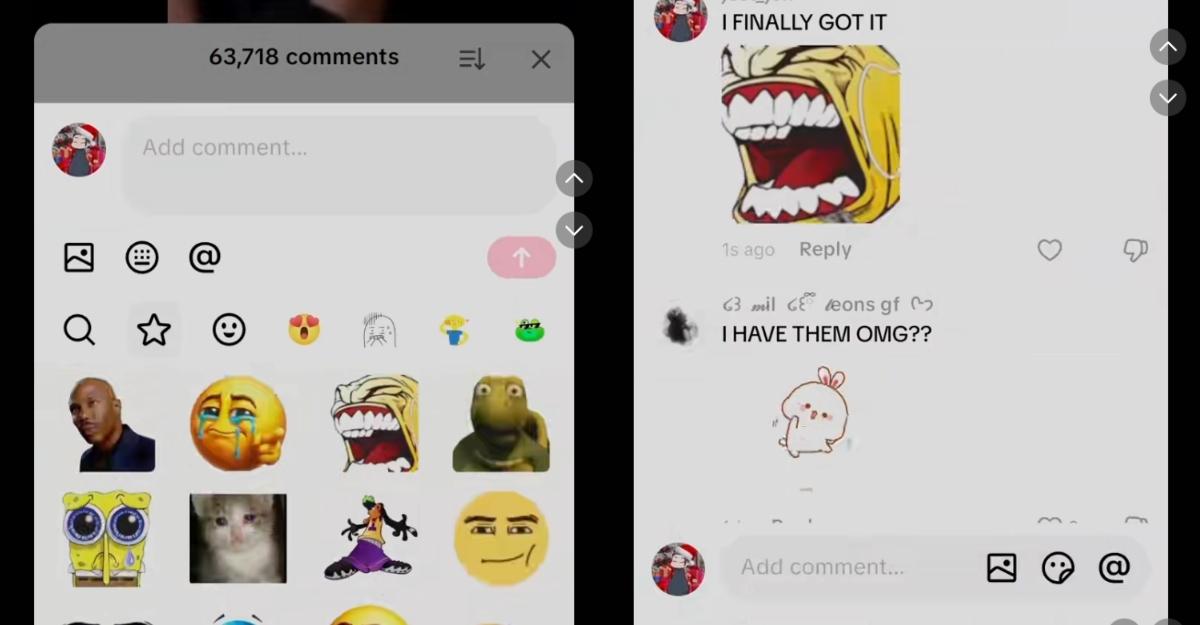
Some users can access the GIF feature for TikTok comments under the emoji icon.
Some TikTok users are able to add GIFs by popping into the comment section, opening a new comment, and tapping on the emoji icon. This brings up the option to browse available GIFs and add GIFs and stickers.
According to some app users, if the sticker option is available but you're not able to browse GIFs, there's a workaround. You can find a GIF you like in TikTok comments, tap on it, and save it to your favorites. Then, when you want to use that GIF in a comment of your own, you can open a comment, tap on the sticker icon, and select the saved GIF from your sticker selection.
TikTok users can also add GIFs using the photo feature in comments.
If you're able to add photos in comments but not GIFs, there's a simple but slightly cumbersome workaround to add GIFs as well. First, find the GIF you want on a site like GIPHY, and save the GIF to your phone. Then open up a new TikTok comment and tap the photo icon. From there, you can select the GIF that you just saved to your photos, and it should upload into the TikTok comment.
In order to upload your own photos to TikTok, you'll first need to adjust your app permissions. When you attempt to upload photos to a TikTok comment, TikTok will prompt you to change your app settings with a message like "To access all photos, change your settings." When you click on "Change," you can adjust your app settings to allow the app to access all of your photos or a limited selection of photos. You can change this selection later.
Some videos about the GIF comment feature suggest updating your app or your phone in general. One video suggests that toggling the "animated thumbnails" option in the app's accessibility settings and then waiting a couple of days will allow a user to comment with GIFs, but this method has not been verified.